 Exercise 4 - Export / Import a document using STL format
Updated : 26 November 2024
In this exercise, you will learn how to export and import a document using a specific file format.
Note
After downloading the Automation_SelfLearning solution from GitHub, you will find the whole example code for this exercise in the Exercise_4 project.
- Set up your environment.
- Launch Visual Studio
- Open the project Automation_SelfLearning project to begin coding your own application. This project should contain your work from first three exercises. If not, you can get code directly from Exercise_3 project.
Design the Application Interface
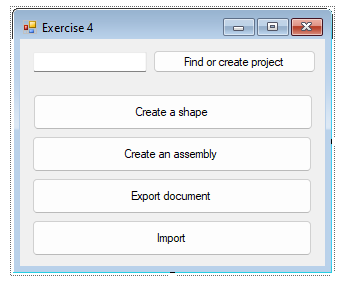
Open the design form of your application. This interface already contains a TextBox and three Buttons.
Add two Buttons to the form as shown below:
- For each button, add a Button Click Event
- Double-click the button on the form to generate a click event handler.
- Implement the click event method to create an assembly into an assembly document.
Important
To achieve this exercise, you will need more information about Elements and about Document Handling
- Coding Steps
Ensure the following functionalities are included in your method:
Find or create target project (cf. Exercise 1)
Create a shape (cf. Exercise 2)
Create an assembly (cf. Exercise 3)
Export the assembly document to STL format:
Tip
For this part of the exercise, you need to use
IDocumentsinterfaceDo not forget to check if target exporter is available.
Import the file created as a new Document, using options, by using method
TopSolidHost.Documents.ImportWithOptionsImportant
Try to set the option "CREATION_MODE" to "SolidShape" :
List<KeyValue> inOptions = new List<KeyValue>();
inOptions.Add(new KeyValue("CREATION_MODE", "SolidShape"));
Tip
You can use an OpenFileDialog to allow file selection on the go:
System.Windows.Forms.OpenFileDialog openFileDialog = new System.Windows.Forms.OpenFileDialog();
openFileDialog.AddExtension = false;
openFileDialog.Filter = "STL Files (*.stl)| *.stl";
openFileDialog.CheckFileExists = true;
openFileDialog.ShowDialog();
Just as before, do not forget to check if target importer is available.
- Test your application:
- From the Debug menu, select Start Debugging to run your project.
- Click the button on your form to execute the functionality
Self-Learning exercises table of content:
- Exercise 1 - Get or create a TopSolid Project
- Exercise 2 - Create a shape
- Exercise 3 - Create an assembly