Transition Sheet Metal
|
|
Transition Sheet Metal |
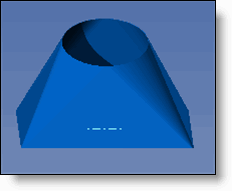
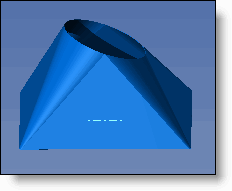
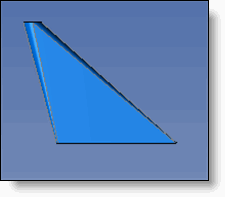
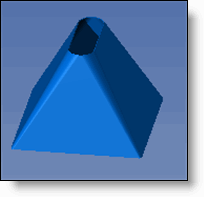
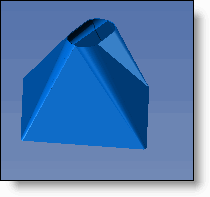
This command allows you to create sheet metal between 2 sections. (for example, a hopper)
Creation stages / Use:
Click the  icon or select Sheet metal > Transition Sheet Metal... from the drop-down menu.
Check Surface Only to not manage the width. The sheet metal will be a surface sheet metal.
If the option below is not checked, enter the thickness of the sheet metal.
Indicate whether or not the dimensions indicated are external dimensions.
Select the transition type.
|
|
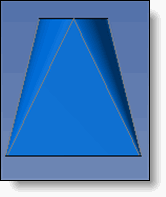
Point and Point: Allows you to define the transition by 2 points.
|
|
|
Point, Direction and Height: Allows you to define the transition by a point, direction or height.
|
|
|
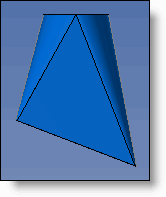
Point, Direction and Point: Allows you to define a transition by 2 points and a direction.
|
|
|
|
|
No Orientation |
With Orientation |
 Select the geometry of the first section and inform the dimensional values. If the geometry is not proposed or if it exists, click User section
  and select the profile.
Enter the incline angle of the first section. If the incline is not around the proper axis, the orientation of the sections must be modified (see explanations in section 4. Choice of transition types below).
Select the incline direction of the first section. It is preferable to select the same direction as the direction between the 2 sections.
|
|
|
|
No Incline |
With Incline |
 Select the geometry of the second section and inform the dimensional values.
Enter a longitudinal and/or lateral shift value if necessary.
|
|
|
|
Without shift |
With shift |
Enter the orientation angle that allows you to turn the second section around the direction.
|
|
|
|
Without Orientation |
With Orientation |
Enter the incline angle of the second section. (see above images)
Select the inclination direction for the second profile.
|
|
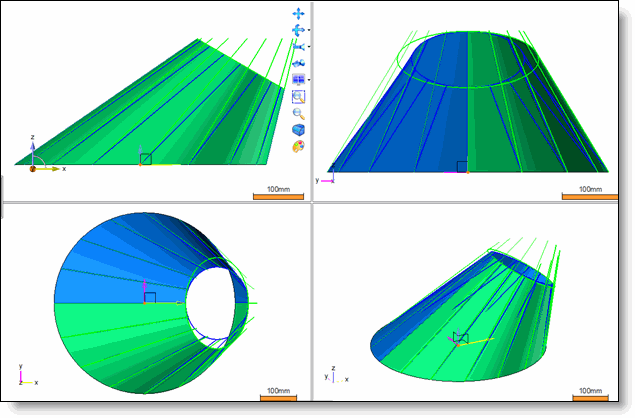
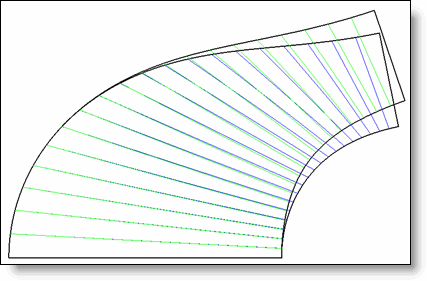
Obtained shapes comparison with and without the conical surface option. The blue surface is obtained without activating the Conical surface option. the blue section is circular. Blue lines on the surface are used for the crunching surface. The green surface is obtained by activating the Conical surface option. The main surface of the shape is an angled cone. The green section is an ellipse. Green lines on the surface are used for the crunching surface. The superposition of the crunched lines shows the difference between these 2 constructions.
Both unfoldings are really different. (the unfolding with blue lines comes from the blue surface, green lines from the green surface). |
|
|
|
|
|
|