Server connections
This command allows you to connect to the Pdm server as well as configure
or modify a connection to an existing server.
Stages of use:
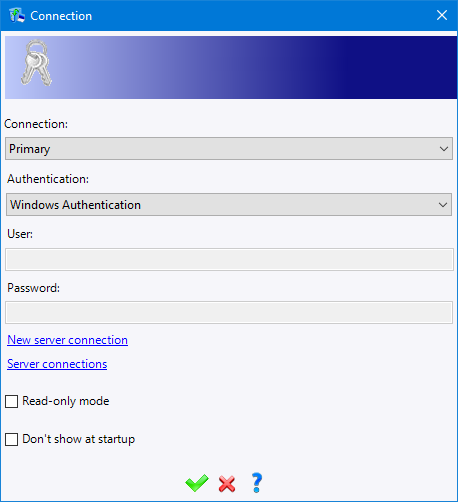
When starting TopSolid, this window is displayed.
Select rhe PDM server where to connect.
If you connect to a Pdm server, select the authentification
type.
Enter an user. (except if using a local Pdm server or a Windows
authentification).
Enter his password if required. (except with the Windows Authentification).
validate.

|
The authentification to TopSolid by using the
windows account allows to simplify the TopSolid Pdm administration.
Instead of duplicating all information from the Active directory
to TopSolid (Name, First name, E-mail address, groups, ...)
TopSolid directly asks the domain controller. When connecting to a new database, the Windows authentification
is possible at the first connection. With an existing database, the "Windows authentification"
will be available as soon as all TopSolid existing users
and groups have been converted.
It means when their equivalent in Active Directory will be
mapped. You will always be able to connect with the user « Admin
» by selecting the TopSolid authentification and by entering
the login Admin and his password. |

|
As for all Windows applications, it is possible to connect
to TopSolid by using another Windows account. Use Shift +
right click on the TopSolid shortcut and select "Execute
with another user". A new
application for diagnosing machines (memory, disk, network,
antivirus, etc. For clients and server) and proposing solutions
when problems are detected is available in the program installation
folder (by default C:\Program
Files\TOPSOLID\TopSolid Diagnostics 7.19\bin\TopSolid.Diagnostics.exe). |
Connection creation or modification:
Click the Server Connections
link in the connection window.
The names of the connections already created appear in the list on the
left.
To create a new connection, click the New server connection
button.
To modify an existing connection, select it from the
list, then click Modify
connection.
To delete an existing connection, select it from the
list, then click Delete
connection.
|
It is possible to configure
several connections to several PDM Servers. But only one connection
can be used at the same time, by selecting the connection in the
drop-down list of the connection window.
The connection to a local Pdm server is created by default.
It is not possible to manually create it. |
Connection
settings:
Connection type: Choose the connection
type.
Connection name: Enter the connexion
name.
Protocol (Explanation of the communication
encryption between TopSolid client and TopSolid'PdmServer):
The
communication between the client workstation and the PDM server can be
encrypted. By default, communication is via HTTP. It is possible to encrypt
using HTTPS. On the pdm server, add the root certification authority certificate
to the “Trusted Root Certification Authorities” store by clicking on the
HTTP button (which will switch to HTTPS). You must also switch to HTTPS
mode on client workstations.The certificate is not supplied by TOPSOLID
or its resellers.
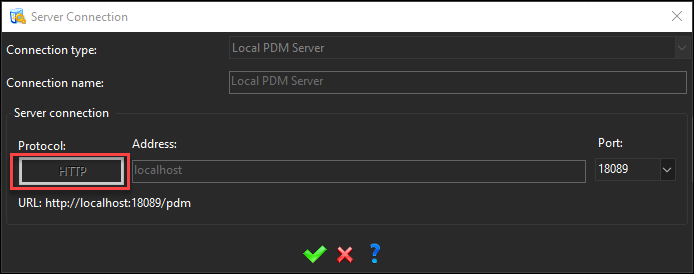
Address: Enter the server address.
Port: Enter the port. It must match
the server's primary listening port (right-click the PDM server icon
near the clock and set it up). The default value is 8086.
Workspace: Select your working
directory on a local disk (by default c:\TopSolidPdm\connection_name\Workspace).
This folder is also used for cache. Emptying
the cache area allows you to delete files from the cache directory
and save disk space.

|
The port defined above
has to be opened in the firewall. (inlet and outlet) |
Additional options / information:
|
This mode allows to
start TopSolid without being able to modify documents. It can
be used to consult or print. |
|
This connection window
will not be displayed when starting TopSolid except if a password
is required. |
Libraries import:
During the first connection, it is asked to import libraries. If you
answer YES, import time can take several tenth of minutes .If you answer
No, only needed libraries like TopSolid Mechanical (for TopSolid'Design)
will be imported. This library contains some templates, main matters,
threading standards, ... The same type of libraries exists for other TopSolid
modules (TopSolid'Cam, ...).
|
This option allows
you to quickly select/deselect all non-mandatory libraries. |
|
If you have answered
NO or after an update
of the application, during next connections, it will be proposed
again a list of non-imported libraries. In this case, check the
libraries to import and select one of these 3 options:
Always
ask to install available libraries: As soon as
a new library or a library's update is available, it will
be proposed. Ask to
install only updates of installed libraries: If,
during an update, new libraries are available, they will
not be proposed in the list. Only updates for installed
libraries will be proposed. Never
ask to install available libraries: New libraries
and libraries updates will not be proposed.
This kind of libraries import can be modified with the Tools
> Options > PDM > PDM
command. |