|
Multilayer material |
A multi-layer material is a combination of several layers of material. A multi-layer material is required to define a panel.
Creation stages / Use :
Choose New Document > Advanced > Multilayer Material.
Bill of material :
Define a designation, reference and category for your multilayer material.
Select a category from the drop-down list and enter the total thickness of the material.
Composition :
Add a top and bottom finish and/or coating if necessary. You can modify their orientation in degrees.
Add the materials that make up the layers in the table, adjust the thickness and orientation if required.
Check or uncheck the option “Bottom coating identical to top coating” to duplicate the top finish, and check or uncheck the “Bottom finish identical to top finish” to harmonize finishes.
Select a material for the envelope if required (this will influence the overall appearance of the multi-layer material).
Define the laminate’s isotropy and homogeneity, in “Forced” or “Managed by constituents” mode.
Appearence :
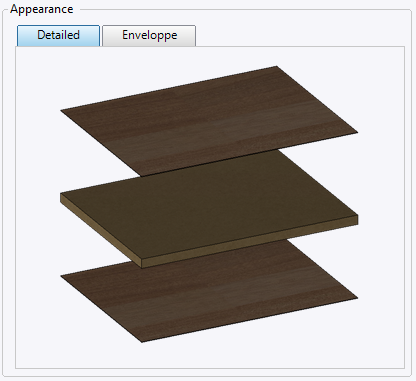
The Appearance tab displays the result of our multi-layer material, if no envelope material has been selected, the detailed appearance will be used.
Isotropy / Homogeneity:
If all documents used in the Laminate Material (Material, Coating, and Finish) are marked “unspecified”, the Laminate Material document will be anisotropic (checkbox unchecked).
If at least one document is marked anisotropic, the laminate will be anisotropic (checkbox unchecked).
If no document is anisotropic, and at least one is isotropic, the laminate will be isotropic (checkbox checked). “Unspecified” documents are ignored.
The same rules apply for homogeneity.