|
This option allows to filter your bill of material
to be able to exclude/keep an elements selection. You just have
to check the filter to use to activate it.
There are 2 types of filters in this dialog:
Source Document:
this area lists filters created in the source document (Entities Filter
and Filter
by Properties). Filter Documents:
this area lists the existing filter
documents in the source project or in the project referenced
by the source document. If the Activate
cell is selected, only elements matching with this filter
will be kept in the bill of material ( and consequently, all
other elements will be excluded).
Level origine type:
- From
current level: This
choice allows to retrieve the property of a set from the first
sub set where is the part is.
- From
top assembly: This choice
allows to retrieve the property of a set from the first sub
set
Strict: When Strict
mode is enabled, the components are not taken into account.
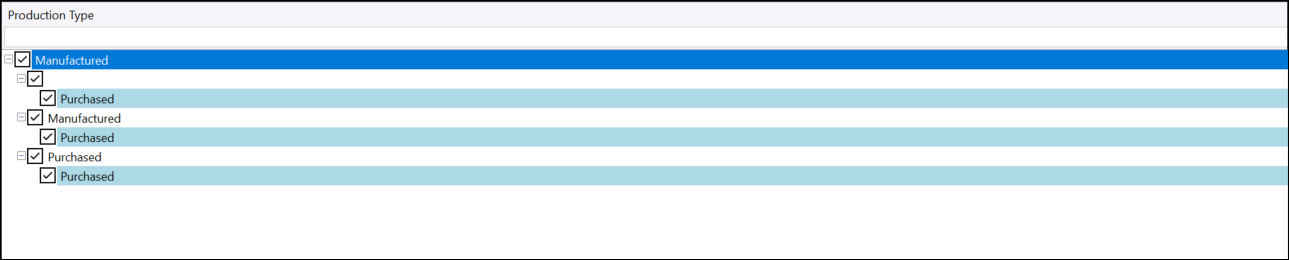
Example: An assembly
with the production type ‘Manufactured’ consists of three assemblies:
one of type ‘Purchased’, one of type ‘Manufactured’, and a third
whose production type is not specified.
Finally, each sub-assembly contains three parts: one with the
production type ‘Purchased’, one ‘Manufactured’, and another whose
production type is not specified.
Multi-level
BOM with a filter retaining only ‘Purchased’ components
|
|
Strict
mode
Assembly-only
BOM with a filter retaining only ‘Purchased’ components.
|
It can be observed that Strict
mode displays only the line of the first assembly and
that of the sub-assembly, without taking into account
the components of the sub-assemblies

|
Strict mode is deactivated
Assembly-only
BOM with a filter retaining only ‘Purchased’ components.
|
It can be observed that when Strict
mode is not active, the bill of materials displays the
lines of all sub-assemblies (even if not all of them have
the production type ‘Purchased’), because they themselves
contain parts whose production type is ‘Purchased’.
 |
|

