Excel link
|
Excel link |
This command allows you to import or export values from or to an Excel document.
Creation stages / Use:
Select the Construction > Parameters > Excel link... command from the drop-down menu.
Select the Excel document:
File: the Excel document has not been imported in TopSolid 7, just browse to select it on your disk..
Click the Open button.
Select the mode :
Import: Excel document values are imported in TopSolid parameters.
Export: TopSolid parameter values are exported to an Excel document.
Validate with the  button.
The command result is displayed in the Parameters area.
|
The parameter types must be real, integer, boolean, text, enumeration, user enumeration or code. Excel supported versions are : 2003, 2007, 2010 and 2013. |
Modifications / Additional information:
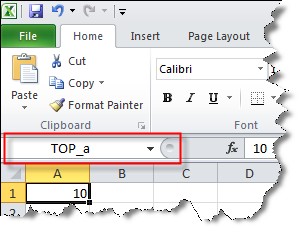
To be usable, Excel document cells have to be named by adding prefix TOP_ in front of the parameter name is shown below:
|
Example: The named cell TOP_a allows you to drive the a or A parameter in TopSolid. |
|
Excel does not manage some characters used to name columns, especially space character. In this case TopSolid will use double underscore '__' instead of the space character (example with parameter named 'd 1': 'TOP_d__1'). Prohibited characters into Excel are spaces and all special characters except ' \ '. Furthermore, Excel does not differentiate case (capital and non-capital letters). Link with D and d parameters will not work properly. |
|
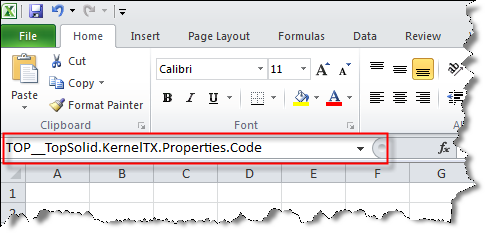
To be able to use some parameters in Excel,like for example, the code parameter, you have to:
|
||
|
|
|
In an Excel document, the Formula context allows you to modify the cell names. |