|
Part type for BOM rules |
This command allows to change the Type for BOM parameter value for Part type document in the bill of materials only.
Creation stages / Use:
Select the Bill of Material > Type for BOM Rules > Part Type for BOM Rules... command from the drop-down menu.
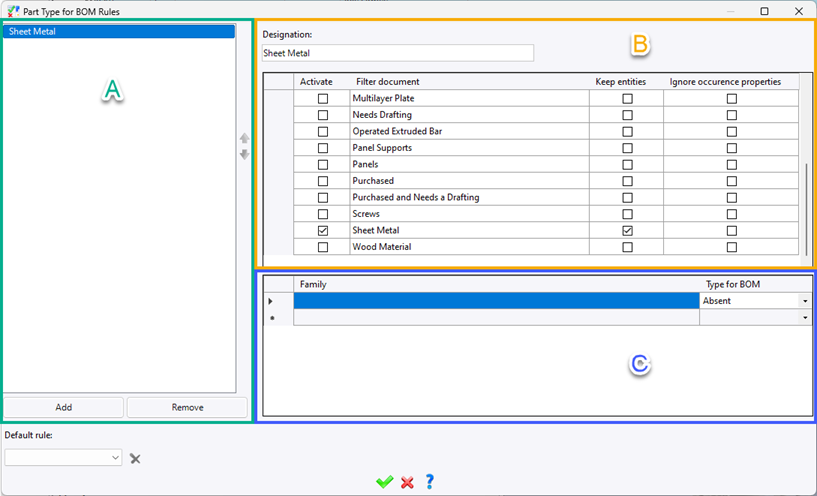
Area A:
|
This area lists the rules that have been defined.
Click on the Add button to create a new rule and on the Delete button to delete the selected rule.
Use the Up and Down arrows to change the order of the rules in the list. The order is important because the rule n+1 depends on the result of rule n. |
Area B:
|
This area is used to define the filter(s) to be used for the current rule.
The Keep entities checkbox is used to define whether you want the filter to keep or ignore parts that match the filter criteria. The Ignore occurrence properties checkbox is used to ignore modifications made locally in the assembly to the properties of a part. |
Area C:
|
This area allows to define the Type for BOM (Absent or Present) for parts resulting from the various rules.
You can define specific Type for BOM for a family by selecting it in the box in the Family column. |
|
If a BOM line meets the rule's application criteria, then TopSolid no longer look at the property defined on the part, but uses the specified value. |
Available options:
Default rule:
|
If no rule is valid, the default rule is used if it has been defined. |
Modifications / Additional information:
If, for example, you wish to exclude all sheet metal parts from the BOM, activate the Sheet Metal filter and tick Keep entities to take into account all sheet metal in the BOM. Then, in the Type for BOM menu, select Absent (as shown in the screenshot at the top of this page). In this way, all elements selected by the rule (in this case, sheet metal parts) will be absent from the BOM.
