Trim
|
Trim |
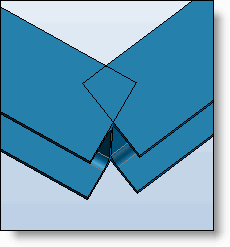
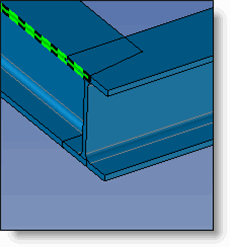
This command allows you to create a planar cross section on extruded bars. The first extruded bar will extend to the selected plane on the tool extruded bar.
Creation stages / Use:
Click the icon or select
Modeling > Trim...
command from the drop-down menu.
Select extruded bars to modify.
Select a trimming plane
Enter the offset between an extruded bar and the selected plane.
|
|
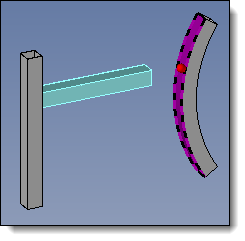
Extruded bars before the planar trim |
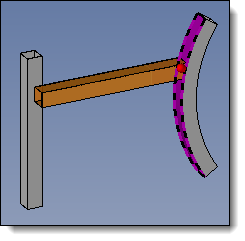
Extruded bar after the planar trim in relation to the selected face |
|
|
|
|
Available options:
Extends profile (available with Trim by profile only):
|
If the profile does not pass through the extruded bar to be cut, this option allows it to extend it tangentially.
|
Extend:
|
If the extruded bar to be cut does not collide with the tools, this option allows to extend the extruded bar.
|
Straightening mode:
|
This option allows the end of the profile to be straightened by a flat cut as close as possible to the original tool. Three modes are available:
|
Create folder :
|
This option groups all cuts (when several profiles are selected) in a folder of the operations tree. This option is not available in editing an existing operation. |
Modifications / Additional information:
The modification of the planar trim is performed contextually from the operations tree or on the edge from the graphic.
Other modifications are also possible from the graphics area (invert the side to be deleted, choose the intersecting zone if multiple intersection). Depending on the situation, certain graphical data may be displayed or hidden, to prevent unnecessary pollution for the user:
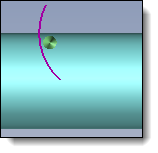
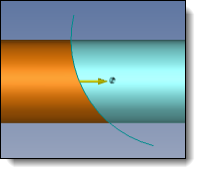
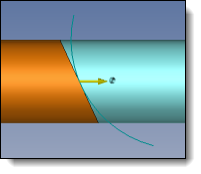
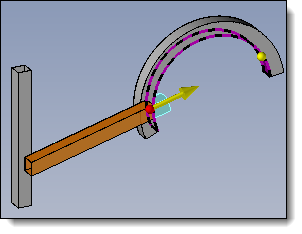
Trim without extension (the tool completely intersects the initial extruded bar), single intersection:
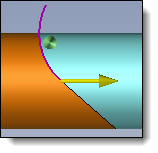
Preview of the new face and a yellow arrow positioned on the face that determines which side is retained (the side marked by the arrow is the side to delete). Double-click on the arrow to reverse the deleted side.
|
Trim without extension, single intersection |
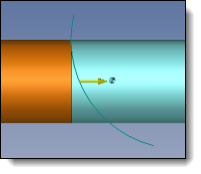
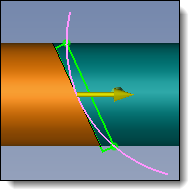
Trim with extension, single intersection:
Global shape preview only.
|
Trim with extension, single intersection |
Trim with multiple intersection:
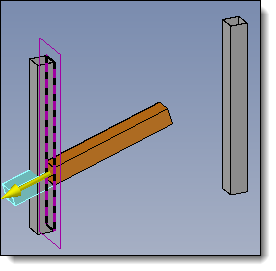
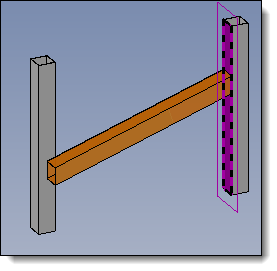
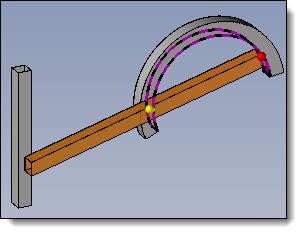
When there are several intersections between the proextruded bar and the tool, 2 handles are displayed at the positions of the 2 most extreme ends. There are always only 2 handles displayed, regardless of the number of actual intersections. The selected handle is red and the unselected one is yellow. You can change by double-clicking on the unselected handle.
|
|
2 intersections without extension |
2 intersections with extension |