This command allows to analyze the normals, curvatures or isoparametrics
of a batch of faces and/or edges.
This analysis is done by projecting the isoparametrics on the selected
faces.
Creation stages / Use:
Select the Analyze > Analyze faces...
command from the drop-down menu.
|
This
mode allows to display the vectors of normals of a batch of faces
and/or edges.
Select faces to
analyze. Select edges to
analyze. Set up the display
of normals:
Number of isoparametrics:
allows to define the number of isoparametric curves
to be projected on the faces. This value will be used
for both U and V. U / V
: these check boxes allow to display only the isoparametric
curves of U direction or V direction or both. Density:
this cursor allows to specify the number of teeth
to be displayed on each of the isoparametric curves. Amplitude:
this cursor allows to set the size of the teeth (value
between 1 and 10000). |
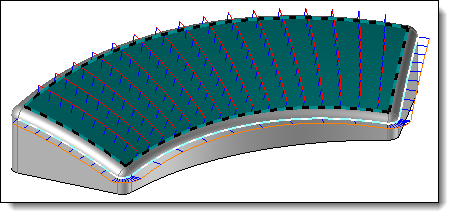
Example
of normal analysis of a face and a set of edges with isoparametrics
on V |
|
|
This
mode allows to analyze curvature of a batch of faces and/or edges.
Select faces to
analyze. Select edges to
analyze. Set up the display
of normals:
Number of isoparametrics:
allows to define the number of isoparametric curves
to be projected on the faces. This value will be used
for both U and V. U / V
: these check boxes allow to display only the isoparametric
curves of U direction or V direction or both. Curvature
type: select in these menus the type of curvature
to be displayed (Gauss
curvature, Maximal
curvature or Minimal
curvature). Density:
this cursor allows to specify the number of teeth
to be displayed on each of the isoparametric curves. Amplitude:
this cursor allows to set the size of the teeth (value
between 1 and 10000). |
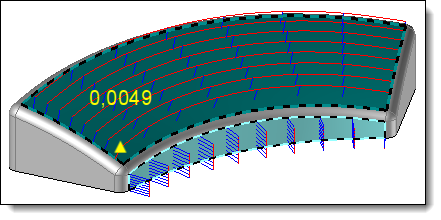
Example
of maximum curvature analysis of a batch of faces with
isoparameters on U |

|
By
positioning the cursor on a tooth, TopSolid displays the
value of the curvature (Curvature = 1/Curvature radius). |
|
|
This
mode allows to display isoparametrics of a batch of faces.
Select faces to
analyze. Set up the display
of normals:
Number of isoparametrics:
allows to define the number of isoparametric curves
to be projected on the faces. This value will be used
for both U and V. U / V
: these check boxes allow to display only the isoparametric
curves of U direction or V direction or both. |
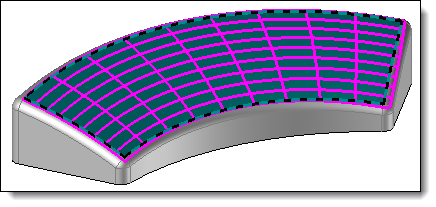
Example
of isoparametric display of a face in U and V |
|
Available options:
|
This option
allows to reduce the area to be considered inside the selected
current face.
This can be done dynamically by moving the yellow handles with
the mouse or from the fields Initial value U, End value U, Initial
value V and End V value. These values are between 0 and 1, so
that if the value is for example 0.75 then the remaining 25% of
the face in this direction will not be taken into account by the
current analysis.
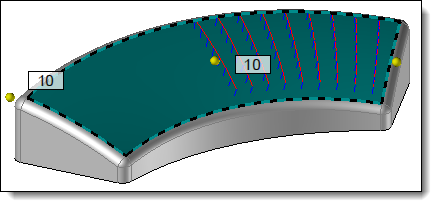
Example
of normal analysis in dynamic mode of direction V with
an initial value of 0.5 and end value of 1 |
|
|
Accuracy:
allows you to set the number of decimal to be displayed in
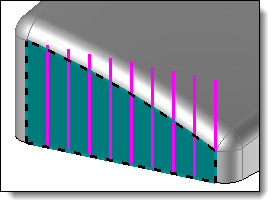
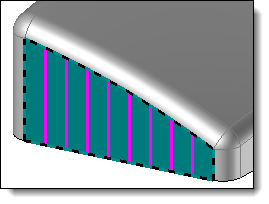
the curvature value during of a curvature analysis. Trimmed:
allows to limit the isoparametric curves on the external restriction
curves of the face.
|
|
Without
trimmed mode |
With
trimmed mode |
Comb:
allows to display the teeth (blue profiles) representing normals/curvatures
hooked to the isoparametrics (available with normal analysis
or curvature analysis). Envelope:
allows to display isoparametrics in a normal analysis or a
curvature analysis. Inverse:
allows to reverse the direction of normals or curvatures in
a normal analysis or a curvature analysis.
|
Modifications / Additional information:
These elements are displayed during the analysis only and will be deleted
as soon as the dialog is validated or closed.