Distance measurement
 Distance measurement
This measurement type allows to know the distance between two entities.
Select the first geometry. A filter allows to select only some type of geometries (point, axis, plane, curve, shape) or with the automatic mode, to be able to select all kind of entities by using the rotative picking.
Select the second geometry. A filter allows to select only some type of geometries (point, axis, plane, curve, shape) or with the automatic mode, to be able to select all kind of entities by using the rotative picking.
Check Keep analyses to keep result labels on screen until the analysis is running.
Enter the analysis accuracy (the number of decimals).
Select, from the drop-down list, the unit for the length.
Check Display unit, if the unit should be displayed in lengths result labels.
Display the result. By dropping down the menu, the results can be displayed in the menu in addition to in the labels. This display in the menu allows you to use the standard copy/paste functions.
Check Tabulated to copy/paste the results into a spreadsheet, each value will be pasted in a different cell.
|
|
- Delete the "current" label - Delete all other labels (except the "current" label) - Delete all labels |
|
|
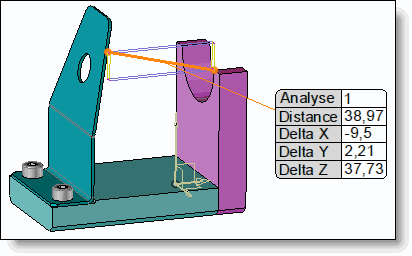
The Shape option allows to get the minimum distance between a shape and a point, axis, plane, curve or another shape. |
|
|
|
|
|
Example of a distance analysis between two shapes. The orange line represents the minimum distance between the shapes. |