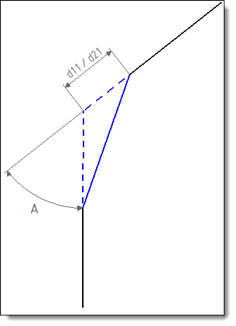
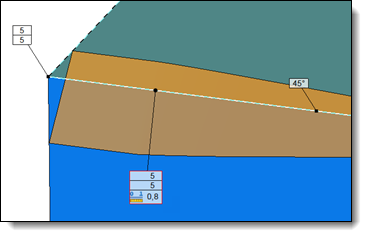
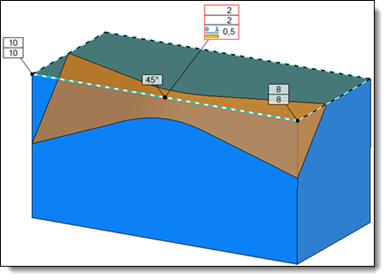
When changing the angle or the first distance, the second distance of others points will be adjusted automatically to maintain a constant angle (machinable).
|
Variable Chamfer |
This command allows to make variable chamfers at constant angle on a shape.
Creation stages / Use:
Select the Shape > Other operations > Variable chamfer... command from the drop-down menu.
Choose the reference face
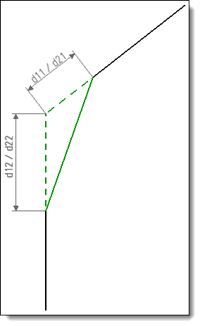
Choose the creation mode of chamfer : Distance angle mode or distances (see detail in the available option).
Select the edges and/or faces on which to apply a chamfer with the provided.
|
When changing the angle or the first distance, the second distance of others points will be adjusted automatically to maintain a constant angle (machinable). |
|
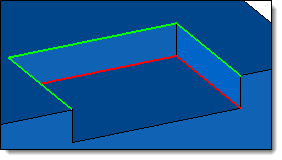
Concave variable chamfer is not manage (add matter). Only convex variable chamfer can be created (green edges below).
|
Available options:
Modes:
|
|
Edges:
|
The edges/faces selected will be appear in this list. To delete elements from this list, it is possible to select them again in the graphic area or to select them from the list and use the [Delete] key on your keyboard. If the selection contains multiple invalidities, the contextual command Delete Invalid Selections allows to remove them quickly.
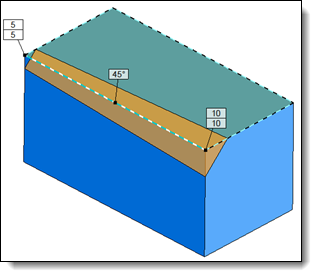
It is possible to modify the values of angle, start and end of chamfer using the labels. To do this, double click on the numeric value on the label.
To add intermediate distances values on a variable chamfer, right-click the affected chamfer labels and select the "Add length" function. A new value point appears with a label as illustrated below.
|