Extension
|
|
Extension |
This command allows you to extend the borders of a surface.
Creation Stages / Use:
Click on the icon  or choose the command Surface> Extension... from the drop down menu.
Select a face's border edges or select a face if you want to extend all of the faces dimensions.
Choose the calculation mode for the length of the extension:
|
|
Length mode: The value of the extension is entered manually. |
|
|
Shape Mode: The surface is extended to the first intersection between the faces and a shape. In this mode, the selected shape must absolutely exceed the face to extend. |
|
|
Face mode: The surface is extended to the intersection with a face. |
Validate with the  button.
|
|
It is not possible to select border edges that belong to different shapes. |
Available Options:
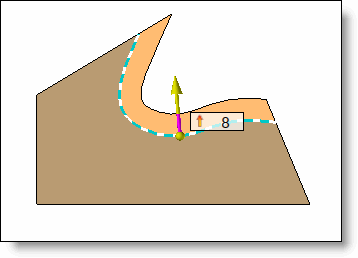
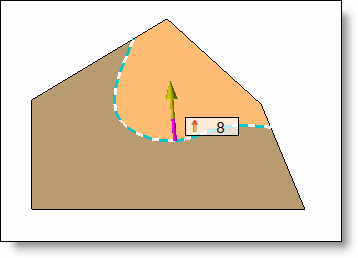
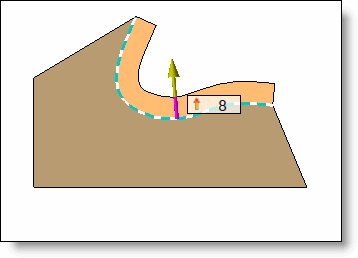
Linear mode allows for a tangent extension, while Curvature mode also respects the curvature of the face.
Modify faces:
|
|
This command can either create new faces (option activated) or modify the reference faces (option deactivated).For example, if the face is extended by 5mm and the option is activated, the initial face will not change but a second face will be created with a 5 mm length. If the option is activated the face is extended by 5 mm. |
Boundary type:
|
|
|
Side edge:
|
|
|