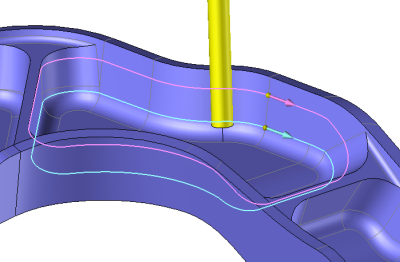
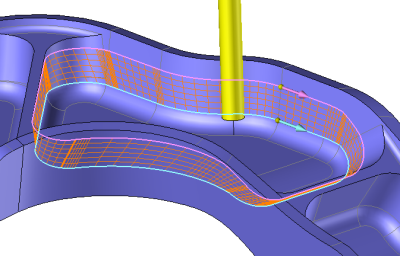
Whatever method is used, to realize the swarf TopSolid always use 2 curves. The bottom curve (for example C1) and the top curve (C2 for example). If the selected method is based on faces. TopSolid starts by calculating in automatic these two curves.
Synchronization
Whatever method is used, to realize the swarf TopSolid always use 2 curves. The bottom curve (for example C1) and the top curve (C2 for example). If the selected method is based on faces. TopSolid starts by calculating in automatic these two curves.
|
Set swarf geometry
First profile
second profile:
Matching : Segment to segment
Show the synchronizations |
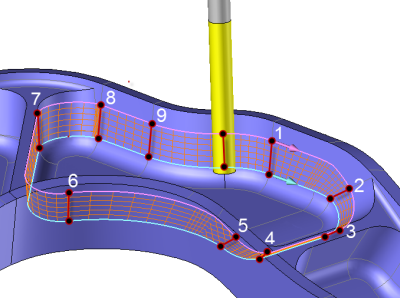
Once we have C1 and C2, TopSolid will synchronize one point of C1 with one of C2 to decide where the tool will be positioned.
Depending on which synchronization method has been applied the result on the machine might be different.
A synchronization between a point of C1 and a point of C2 will create a line between these two points which gives the tool position (on the machine the tool axis will be colinear to this axis).
Depending which synchronization type has been selected the part won't be machined in the same way!
It is then important to check the result before machining the part (a bad synchronization can create an overcutting in the part even if we choose a swarf on faces).
Whatever the synchronization method used, in the case of a closed curve it is possible to modify the origin of the curve (start of the synchronization) with the icon 
|
Profile / Profile synchronization |
|
The synchronisation is automatically calculated regarding the length of each curve (C1 & C2). The point located at the middle of the length of C1 is then linked to the half of the length of C2.
|
|
Segment / Segment synchronization |
|
In this case we must have the same number of entities on each geomtry.
|
|
Point / Point synchronization |
|
TopSolid automatically calculates a synchronization (depending which computing mode we choose in the settings: parametric or curve length). It is possible to insert a couple of points on C1 & C2 (named 1 to 9 on our example). The following window appears to add those couple of points.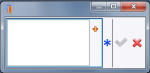 |
 To add or delete a point right click on the label of a synchronized point and then choose the operation to make in the scroll menu.
| Points |
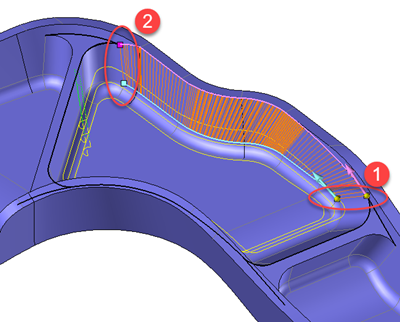
It is also possible to limit the machining by defining a starting and ending point on each curves.
|
First curve Start curve
End curve
Second curve Start curve
End curve
|
|
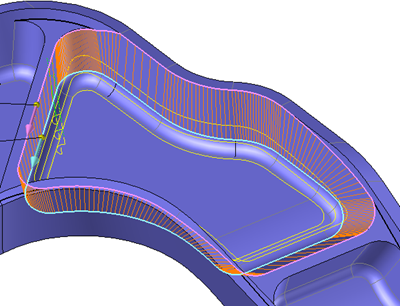
Here the swarf operation is done on all of the two curves. |
 |
|
Here the swarf operation is done on a part of the two curves, between the starting points (1) and ending points (2) |
 |