 Click the different areas in the image below
|
NC Operation Management |
This command allows you to
to view the operative range
to modify an operation
to simulate
to later organize the order in which the milling operations are performed (with automatic sort, cut/paste or mouse move). Any modification to the order of operations must be followed by an operative reprocessing in order to maintain the integrity of the stock update and collision calculations.
...
This is the milling operations "control panel".
To display the milling window, right-click the Entities window and click Millings.
Entities Operation Options Part Machining Cutting Conditions G Code Events Scenario Analysis Machine element Machine Run Search Changes Display All Hide Lock windows |
Click the different areas in the image below
Machining |
|
|
|||||||||||||||||||||||||||||||||||||||||||||||||||||||||||||||||||||||||||||||||||||||||||||||||||||||||||||||||||||||||||||||||||||||||||||||||||
|
|
|
During the inclusion of a Cam document in another one the operations are linked with the operations from the original Cam document..
A green dot appears in front of each operation. These operations can not be modified..
Program 1 Part 1 Side mill D20 L53 SD20 WCS 1 [Origin 1 | C : 0°; A: 0°] End Milling Shape 1 |
 If the original operation is modified the operations with a green dot are also modified.
 It is possible to break the link by choosing Edition/Break associativity from the contextual menu. In this case the green dot disappears.
Attribute
This button alllows to display as columns some information on the operations.
 |
A green checkmark |
 |
A green checkmark An exclamation point |
 |
A blue checkmark |
 |
This symbol is displayed when TopSolid gives a warning at the excution of the operation. |
 |
A green checkmark |
 |
A green checkmark |
 |
A green checkmark |
 |
A green checkmark This icon The icon |
 |
This symbol is displayed when the operation is frozen. |
 |
This option allows to display the necessary calculation time (in seconds) for each operation. The total calculation time is indicated in red at the end of the operation manager. |
Expand panel:
This option allows us to show machining times and machine strokes.
The informations shown in this area are given according to the selected operation in the operation manager.
The tab "Times" shows several machining times. (of the selected operation or of all operation if nothing has been previously selected).
Times Strokes
Total time: 00:09:45:800 Work : 00:09:40:000 Rapid : 00:00:05.800
Approach : 00:00:02:800 Machining : 00:09:40:000 Work : 00:09:35:000 Rapid : 00:00:05:000 Retract : 00:00:03:000
|
If no operation has been selected the times are shown in black
If one or more operations has been selected the times are shown in blue.
The tab "Strokes" shows the total length made by the operations. (selected or all of them).
We can also look at the stroke of each machine axis.(The bracket values shows the mini and maxi of each axis).
Times Strokes
Total Length: 558.200 work : 501.70 Rapid : 56.50
X : (-500mm) -89 / +42.9 (+500mm) Y : (+5mm) +60.6 / +96.4 (+365mm) W : (+140mm) -151.2 / +540 (+600mm) Z : (-30mm) -155.5 / +386.3 (+365mm) Y : (+0mm) +0 / +0 (+365mm) |
The over strokes are in red and the over strokes operations are underlined with a purple dotted line in the operations manager.
Operations Right-click Menu:
Right-click an operation to modify, view or configure it.
Click the different areas in the image below
NC Operation Management Tool Tool Machined Part Program
Additional CAD |
As with the entities tree, based on the operation state, the text representing each operation can be in different colors.

Right-clicking on the part instead of an operation allows you to display several icons. In this example, the sum of all possibilities is represented.
|
Color |
State of milling operation |
 |
The comment of the operation is written in blue :
The operation is correctly performed, the opened eyes indicate that the tool path is visible. |
|
 |
The comment of the operation is written in blue :
The operation is correctly performed, the closed eyes indicate that the tool path is not visible. |
|
 |
The comment of the operation is written in blue :
The operation is correctly performed but the eyes (in grey) indicate that this operation does not generate any movement (for example no material to remove or a tool diameter too large). |
|
 |
The comment of the operation is written in blue :
The operation is not up to date, an execute (F5) is desirable to update it. |
|
 |
The comment of the operation is written in grey :
The operation is deactivated, it is no longer performed. |
|
|
The comment of the operation is written in italic:
The operation is optional (exit of the optional mode as the " / " in Gcode before each line of the operation). |
|
 |
The comment of the operation is written in blue :
The key before the eyes indicates than the operation is under modifications. |
|
|
The comment of the operation is written in cyan blue :
The operation is frozen (impossible to modify). An ice cube  is displayed in the options to remind this.. is displayed in the options to remind this.. |
|
 |
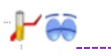
The name of the operation is written in red:
The operation is invalid and requires correction. |
|
 |
The name of the operation is written in blue and underlined in purple dotted:
The operation is correctly performed but outside machine limits. |
|
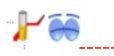 |
The name of the operation is written in blue and underlined in red dotted:
The operation is correctly performed but collisions have been detected during the simulation. |





 is visible when the operation has been verified.
 indicates that at least one collision has been detected during the verification.
 indicates that a modifier has been added to the operation.
 indicates that the stock update is not requested for the operation.
 indicates that the stock is not up to date for the operation.